Once you automate your local branch syncs, you will quickly notice a secondary annoying problem: ghost branches.
Your teammates delete their feature branches on
after pulling a pull request, but those references still clutter your local git branch -a view forever. Worse yet, if an automated script or manual checkout accidentally lands you on a raw commit identifier instead of a formal pointer, you will drop straight into the twilight zone known as a detached HEAD state.
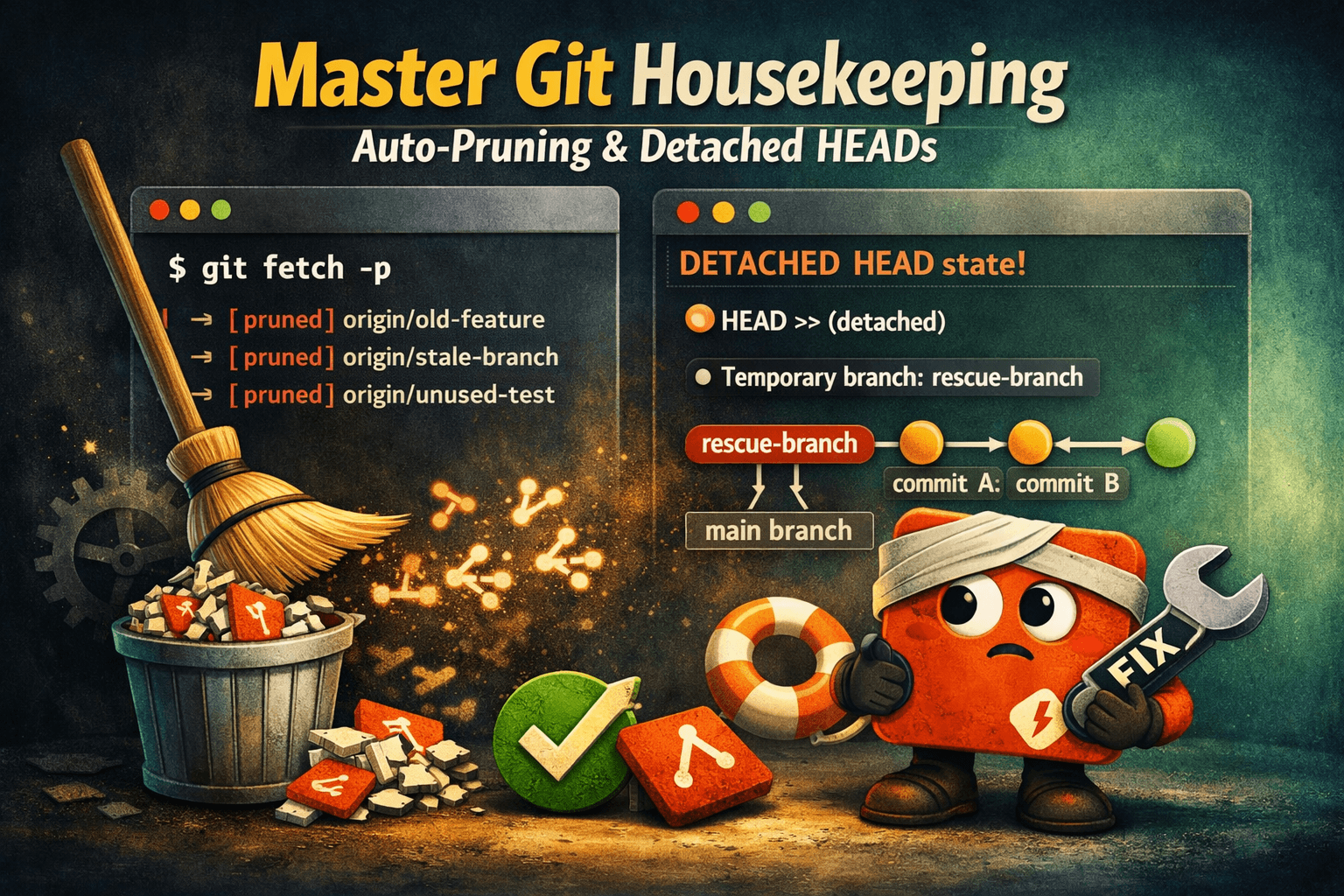
Here is how to automate your repository cleanup and rescue your code when Git loses its coordinates.
Step 1: Automate Stale Branch Pruning
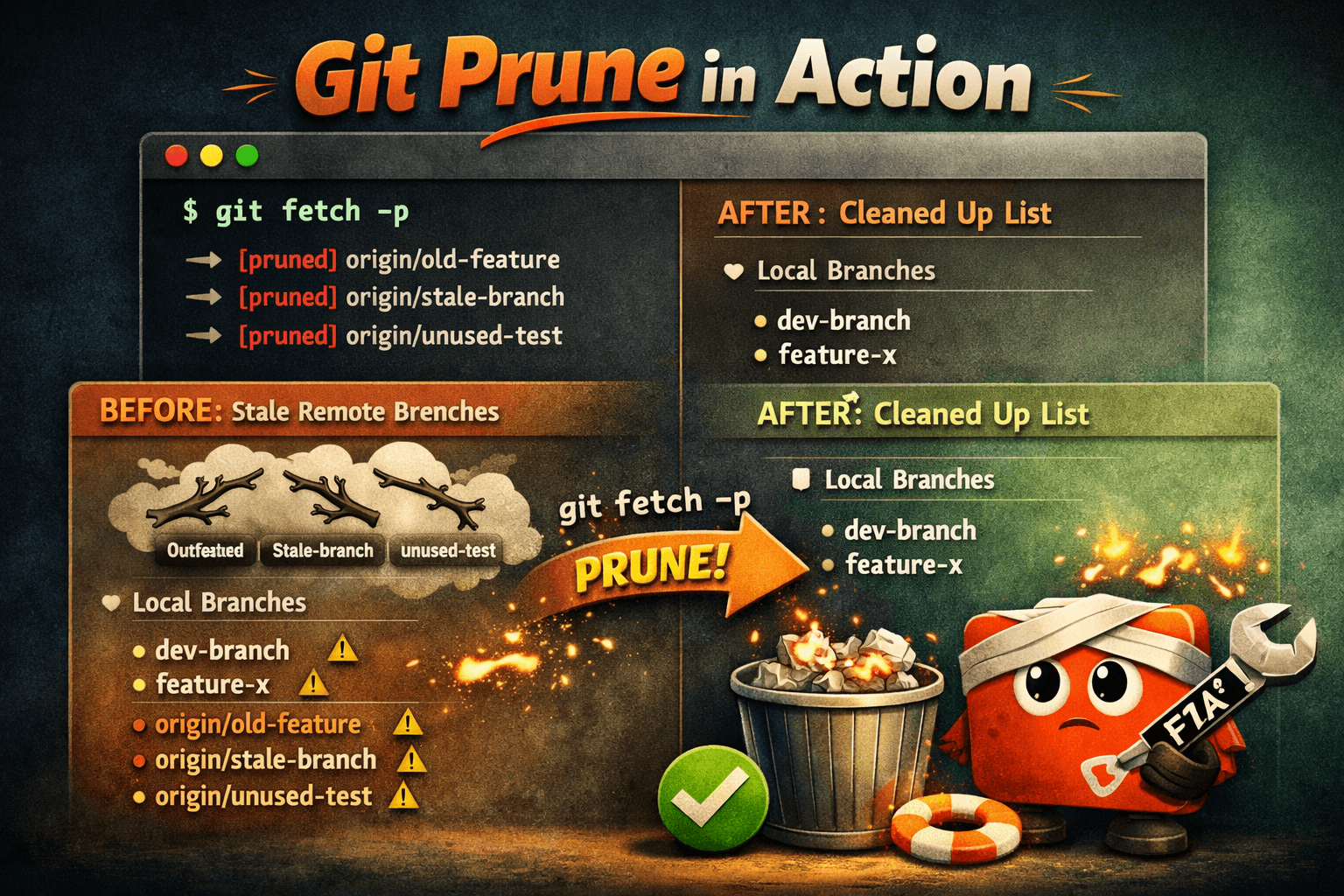
By default, when you run git fetch or git pull, Git keeps your local tracking copies of remote branches even if someone deleted them from the main cloud server. Your local machine is left holding a graveyard of stale references.
You can manually clean them up using:
git fetch --prune
But you shouldn't have to remember to type that flag every single time.
The Permanent Fix Run this global configuration command to instruct Git to automatically sweep away dead remote branch pointers during every single sync operation:
git config --global fetch.prune true
Now, your project history list actively auto-cleans itself without manual intervention.
Step 2: Demystifying and Fixing the "Detached HEAD"
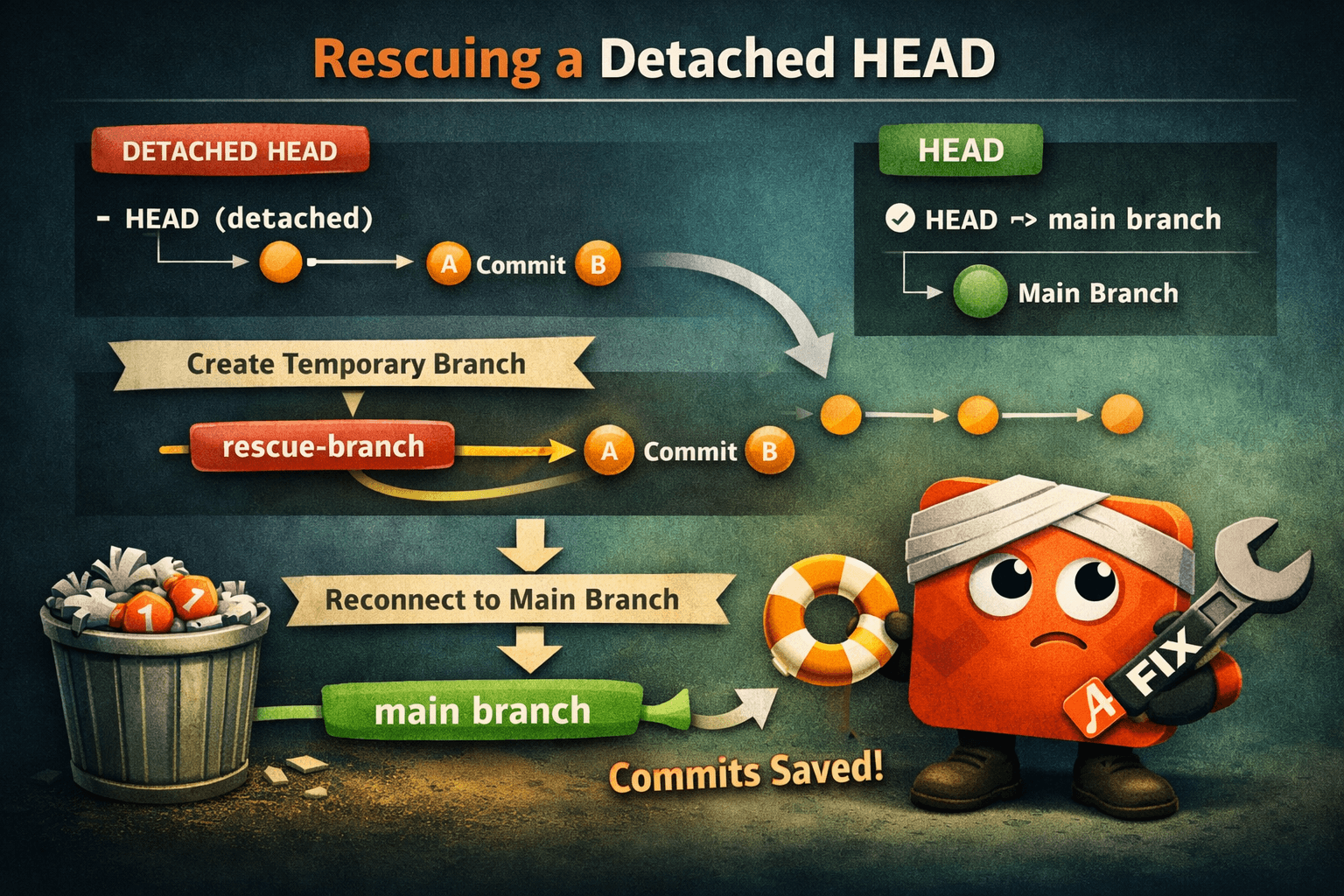
A detached HEAD state occurs when your terminal pointer (HEAD) is looking directly at a specific commit hash rather than a named local branch (like main or feature-login).
How you usually get there:- You checked out a raw commit to inspect old code: git checkout 7a1b3c2
- You checked out a remote branch directly without creating a local copy:
git checkout origin/feature-x- An automation script errored out mid-transition.
The Danger ZoneYou can still write code, modify files, and make commits while in a detached HEAD state. However, these new commits are not attached to any branch. If you switch back to main, your new changes will vanish into the background, leaving them open to being permanently deleted by Git's garbage collector.
Step 3: The Detached HEAD Rescue Mission
If you realize you made commits while detached, do not panic. Your work is completely safe if you follow these precise steps.
Scenario A: You haven't left the detached state yetIf your terminal currently says HEAD detached at..., simply wrap your floating commits into a brand new branch immediately:
# Create a new branch and switch to it right now
git checkout -b feature-rescued-work
Git automatically anchors all your floating commits directly to this new branch name. You can now safely merge it back into your primary workflow.
Scenario B: You already switched branches and your work "vanished"If you accidentally switched back to main and your recent work disappeared, Git's commit history tool (git log) won't show it. You must query the deep internal log system:
git reflog
This outputs a master transaction history of everywhere your terminal pointer has moved:
7a1b3c2 HEAD@{0}: checkout: moving from 9f3e4d5 to main
9f3e4d5 HEAD@{1}: commit: Added critical hotfix code in detached state
7a1b3c2 HEAD@{2}: checkout: moving to 7a1b3c2
- Find the commit hash where you wrote your work (in this case,
9f3e4d5).2. Target that hash to build a formal rescue branch:
git branch feature-recovered-commits 9f3e4d5
Your changes are successfully pulled from the void into a clean, permanent tracking pointer.
Wrapping Up
Maintaining a pristine repository requires a blend of automated configurations and conceptual awareness. By enforcing automatic reference pruning and mastering the mechanics of the reflog, you ensure your developer workspace remains highly performant, predictable, and resilient against unexpected operational mistakes.