
Learn how to make PowerShell look, feel, and behave exactly like a premium Bash/Zsh environment with autosuggestions, interactive subcommand completions, and fuzzy history search.
Let’s be honest. If you are coming from a Linux or macOS background, opening up a raw PowerShell (pwsh) terminal can feel a bit like stepping into a parallel universe where everything is almost familiar, but just clunky enough to drive you crazy.
You miss the instant, predictive text of fish, the robust history search of zsh, and the effortless subcommand completions of a well-tuned bash setup. Out of the box, PowerShell’s tab-completion feels slow, and its visual feedback is... lacking.
But here is the secret: PowerShell is secretly an absolute powerhouse of customizability. With a few modern modules and a slick profile configuration, you can make pwsh look, feel, and behave exactly like a premium Bash/Zsh environment—all while retaining PowerShell's insane object-oriented pipeline capabilities.
Here is how to build the ultimate Bash-ified PowerShell experience.
Step 1: Fix the Keybindings and Enable Fish-Style Autosuggestions
The foundation of a good Bash experience is how the line editor behaves. PowerShell handles this via a built-in module called PSReadLine. We just need to wake it up and give it the right instructions.
First, open your PowerShell profile in your favorite editor (e.g., VS Code):
code $PROFILE
(If the file doesn't exist yet, run New-Item -Path $PROFILE -Type File -Force first).
Now, paste these essential configurations into your profile:
# Set Bash-like Emacs keybindings (Ctrl+A to start of line, Ctrl+E to end, etc.)
Set-PSReadLineOption -EditMode Emacs

# Enable Fish-like inline predictive text history
Set-PSReadLineOption -PredictionSource History

# Change the prediction view to "ListView" or "InlineView" (Arrow keys to navigate)
Set-PSReadLineOption -PredictionViewStyle InlineView

# Set the color of the predictive text to be a subtle gray
Set-PSReadLineOption -Colors @{ InlinePrediction = '#666666' }

# Bind the Right Arrow key to accept the current inline suggestion
Set-PSReadLineKeyHandler -Chord 'RightArrow' -Function AcceptSuggestion

# Bind Ctrl+Space to trigger standard menu completion (Zsh style)
Set-PSReadLineKeyHandler -Chord 'Ctrl+Space' -Function MenuComplete
What this gives you:
- Inline History Predictions: As you type,
pwshwill look through your command history and visually suggest the rest of the command in gray text. Press the Right Arrow to accept it. - Zsh-style Menus: Hit
Ctrl + Spaceto open an interactive grid menu of all available completions right in your terminal buffer.
Step 2: Supercharge Subcommand Completions with Carapace
Standard PowerShell only knows how to tab-complete standard cmdlet arguments (like -Path or -Credential). If you type git che[TAB], it stares at you blankly.
To get full subcommand completion for hundreds of CLI tools (git, docker, kubectl, npm, gh, gcloud), we are going to use Carapace-bin, the absolute gold standard for multi-shell command completion.
- Install Carapace using a package manager like Scoop or Winget:
winget install rsteube.carapace
- Add the initialization logic to your
$PROFILE:
# Initialize Carapace completions for PowerShell
# This hooks into the native engine to provide rich subcommand completions
if (Get-Command carapace -ErrorAction SilentlyContinue) {
    $old_executioncontext = $ExecutionContext
    carapace _powershell | Out-String | Invoke-Expression
}
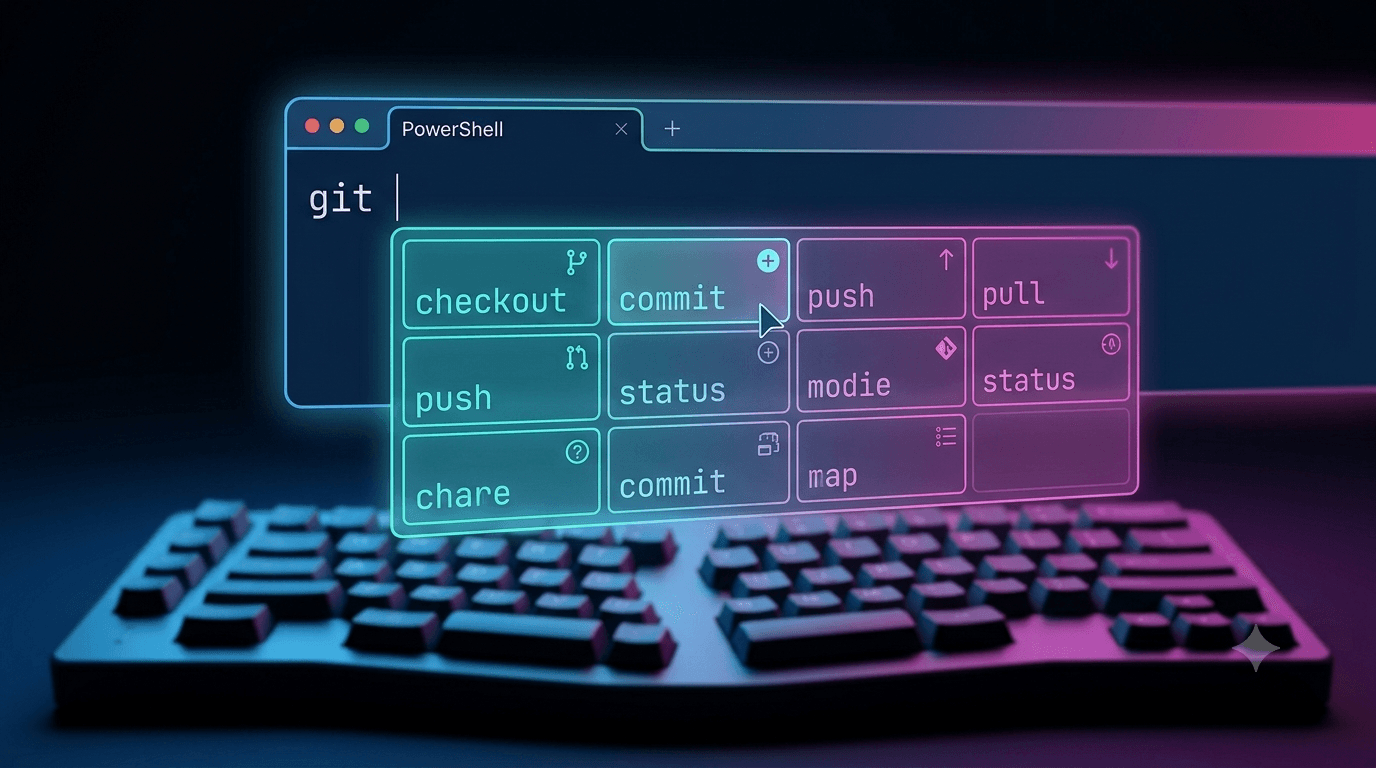
Now, try typing git followed by Ctrl + Space. You will see an interactive menu showing options like checkout, commit, clone, complete with help descriptions for every single subcommand!
Step 3: Add Fuzzy History Searching (FZF)
If you've ever used Ctrl + R in Bash to reverse-search your history using a fuzzy finder, you know you can't live without it. We can bring this exact feature to PowerShell using the PSFzf module.
- Install the
fzfbinary and the PowerShell wrapper module:
winget install junegunn.fzf
Install-Module PSFzf -Scope CurrentUser -Force
- Add this to your
$PROFILE:
Import-Module PSFzf
# Overrides Ctrl+R to use the fuzzy finder for your PowerShell history
Set-PSReadLineKeyHandler -Chord 'Ctrl+r' -ScriptBlock { [PSFzf]::PostContextHistoryFzf() }
Step 4: Inject Essential Bash Aliases & Functions
PowerShell has a few built-in aliases like ls and rm, but they map directly to PowerShell cmdlets (Get-ChildItem, Remove-Item), which don't accept standard Linux flags like -la or -rf.
Let's clean that up by introducing native functions that mirror standard Unix behavior:
# Quick directory listings that accept traditional arguments
function ll { Get-ChildItem -Path . -Force | Out-Host }
function la { Get-ChildItem -Path . -Force -Recurse | Out-Host }

# A quick wrapper to make 'grep' behave beautifully
function grep ($pattern) { Select-String -Pattern $pattern }

# Ensure sudo behavior exists via 'gsudo' (install via winget install gerardog.gsudo)
if (Get-Command gsudo -ErrorAction SilentlyContinue) {
    Set-Alias -Name sudo -Value gsudo
}

# Quick navigation shortcuts
function .. { Set-Location .. }
function ... { Set-Location ..\.. }
Step 5: Put It All Together (Your Master Profile)
Here is your complete, optimized $PROFILE. Copy this layout, save the file, and restart your terminal to activate your brand new, incredibly fast Bash-ified environment:
# ==========================================
# 1. PSREADLINE CONFIG (Autosuggestions & Keybindings)
# ==========================================
Import-Module PSReadLine
Set-PSReadLineOption -EditMode Emacs
Set-PSReadLineOption -PredictionSource History
Set-PSReadLineOption -PredictionViewStyle InlineView
Set-PSReadLineOption -Colors @{ InlinePrediction = '#666666' }

# Intuitive Navigation
Set-PSReadLineKeyHandler -Chord 'RightArrow' -Function AcceptSuggestion
Set-PSReadLineKeyHandler -Chord 'Ctrl+Space' -Function MenuComplete

# Up/Down Arrows search history matching what you've already typed
Set-PSReadLineKeyHandler -Chord 'UpArrow' -Function HistorySearchBackward
Set-PSReadLineKeyHandler -Chord 'DownArrow' -Function HistorySearchForward

# ==========================================
# 2. SUBCOMMAND COMPLETIONS (Carapace Engine)
# ==========================================
if (Get-Command carapace -ErrorAction SilentlyContinue) {
    carapace _powershell | Out-String | Invoke-Expression
}

# ==========================================
# 3. FUZZY HISTORY MATCHING (FZF)
# ==========================================
if (Get-Module -ListAvailable -Name PSFzf) {
    Import-Module PSFzf
    Set-PSReadLineKeyHandler -Chord 'Ctrl+r' -ScriptBlock { [PSFzf]::PostContextHistoryFzf() }
}

# ==========================================
# 4. BASH ALIASES & UTILITIES
# ==========================================
function ll { Get-ChildItem -Force }
function grep ($pattern) { $Input | Select-String -Pattern $pattern }
if (Get-Command gsudo -ErrorAction SilentlyContinue) { Set-Alias -Name sudo -Value gsudo }
function .. { Set-Location .. }

Write-Host "🚀 PowerShell environment loaded with Bash-UX engine." -ForegroundColor Cyan